
Finding Commodity Futures & Options on Sahi: Variants, Expiries & Watchlist
Learn how to move from a commodity such as Crude Oil to the exact futures or options contract you want on SAHI, by variant, expiry, strike and Call or Put, and keep it on your watchlist.
 5 minutes read|

In Part 1 of the course, you have learnt how commodity markets work, how Futures and Options behave, what capital those positions can require, what moves commodity prices, how to structure a trade and how to think about risk before entering one.
Now we take that learning onto SAHI.
Suppose you want to analyse Crude Oil. The first step is finding the commodity on the platform and then moving to the particular Futures or Options contract you want to follow.
On SAHI, a commodity can lead you to different contract variants, Futures, Options and expiries. Once you know how that path works, moving from a commodity idea to the relevant contract becomes fairly straightforward.
Finding Commodities On SAHI
On the SAHI mobile app, Commodities appears alongside the other market sections on the home screen.
Commodity contracts become tradable once the commodity segment is activated on the account, which carries no fee and usually takes 24–48 hours.
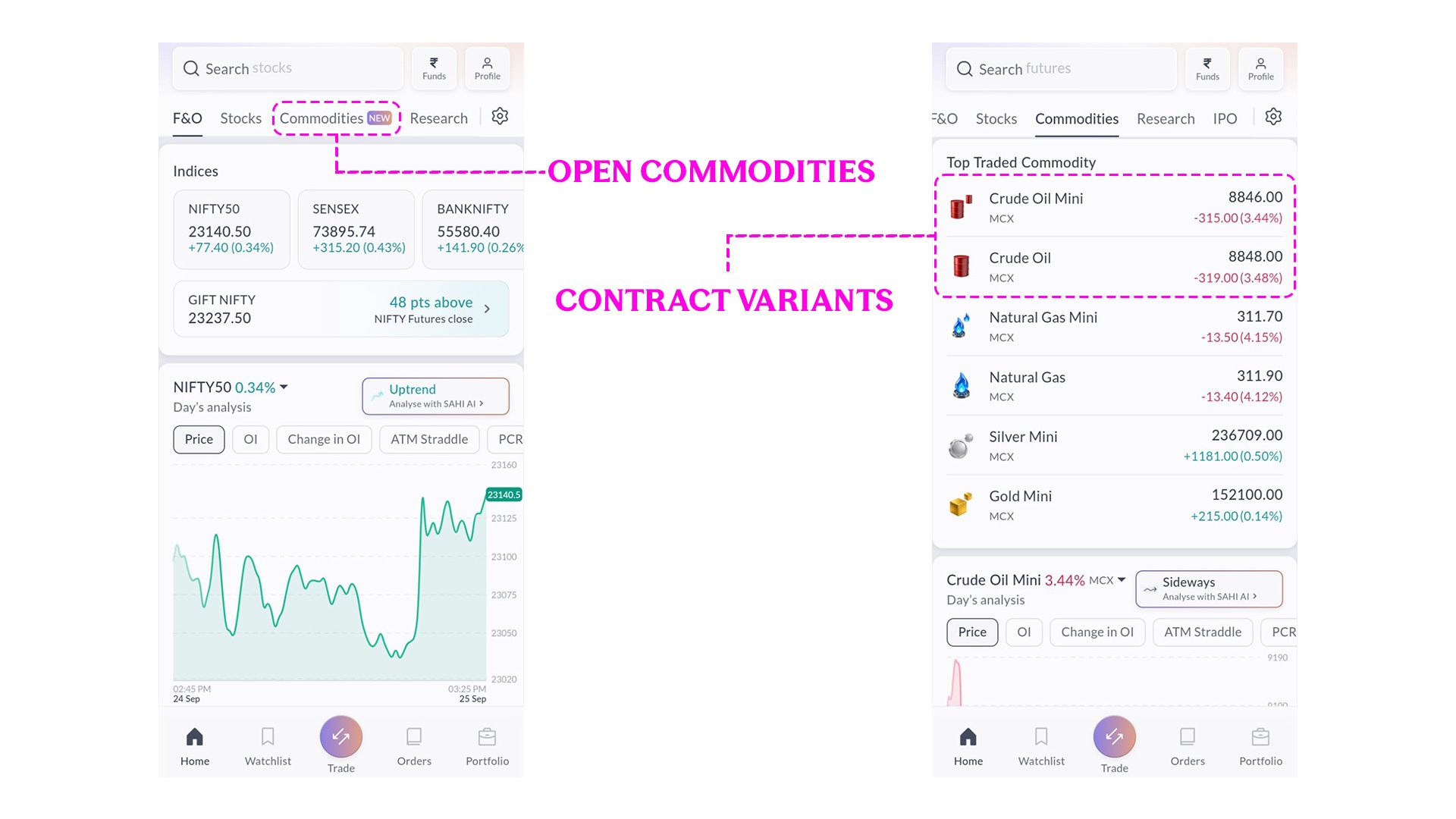
Once you enter the section, SAHI shows commodity instruments available on the platform. In the supplied screen, the list includes Crude Oil Mini, Crude Oil, Natural Gas Mini, Natural Gas, Silver Mini and Gold Mini.
Crude Oil and Crude Oil Mini appear separately because they are different contract variants linked to the same underlying commodity.
If the commodity you want is already visible here, you can open it directly. Search gives you another route when you want to locate a specific commodity or contract. Type CRUDE, for example, and the results can include Crude Oil and Crude Oil Mini along with their available Futures and Options contracts.
Once you reach Crude Oil, choose the variant you want to follow.
From Crude Oil To A Futures Contract
Suppose you choose Crude Oil Mini and want to analyse its Futures contract.
Opening Crude Oil Mini takes you to its market screen, where you can see the price and chart for the instrument.
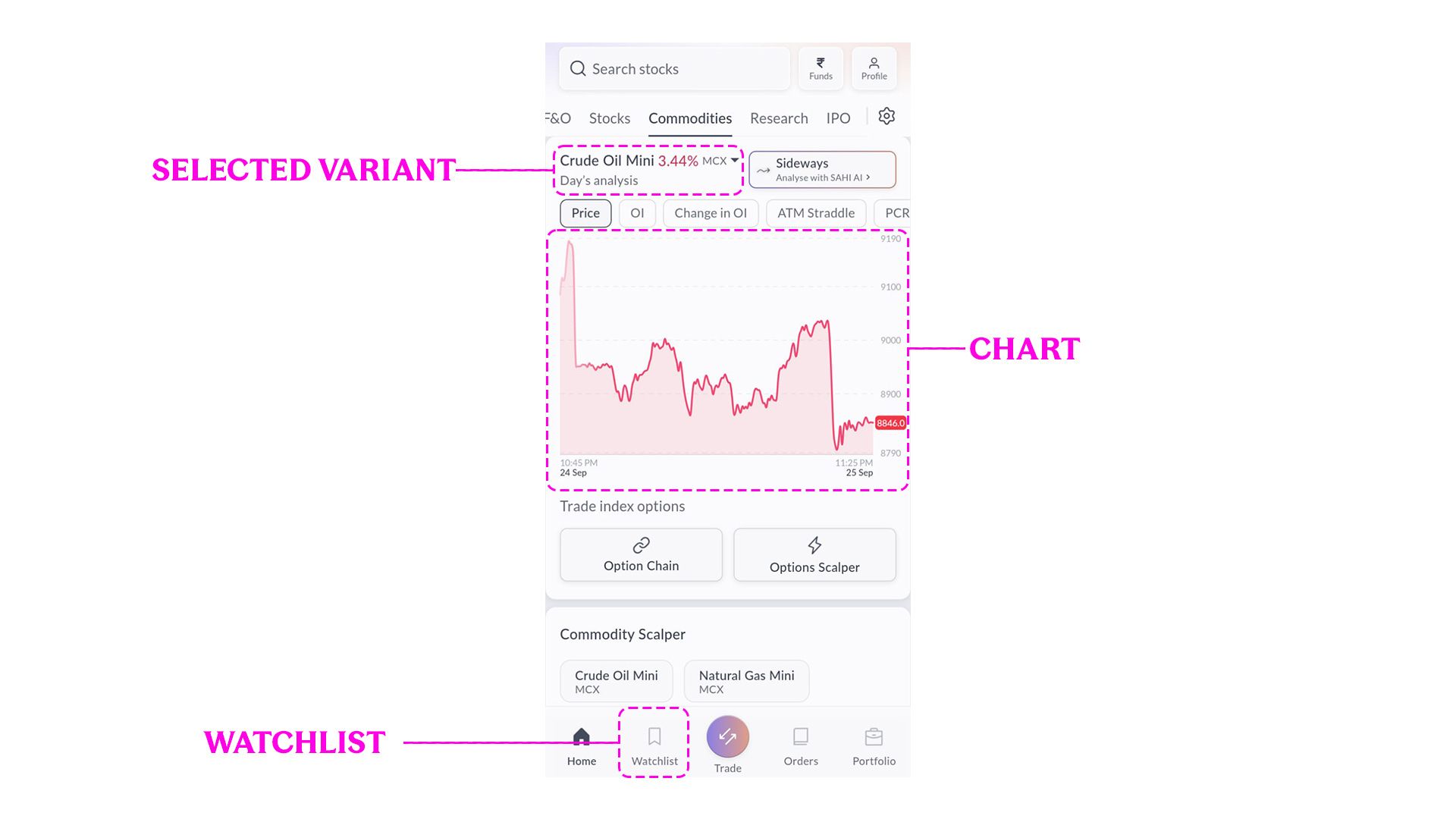
From here, you can move to the available Futures contracts. If you are using search, CRUDE FUT can also be used to focus the results on Crude Oil Futures.
The next detail to check is the expiry.
More than one Futures expiry may be available at the same time. Each expiry represents a separate contract, so the full selection looks like:
Crude Oil → Crude Oil Mini → Futures → Expiry
In the SAHI flow supplied for this chapter, the near-expiry contract is shown when you open Crude Oil Mini, while the Futures section lets you move to another available expiry.
Once you choose the expiry you want, open the contract and its chart.
Finding Crude Oil Options
Suppose you want to explore the same Crude Oil view through Options.
Open the Option Chain for the variant you are following. SAHI provides an Option Chain entry for both Crude Oil and Crude Oil Mini.
Inside the Option Chain, choose the expiry you want to explore. You can then move through the available strike prices and select a Call or Put contract.
The route is:
Crude Oil → Crude Oil Mini → Option Chain → Expiry → Strike → Call / Put
Suppose you have a bullish view and want to inspect Calls. Choose the expiry, look through the available Call strikes and open the contract you want to analyse.
The contract can then be opened on its own chart.
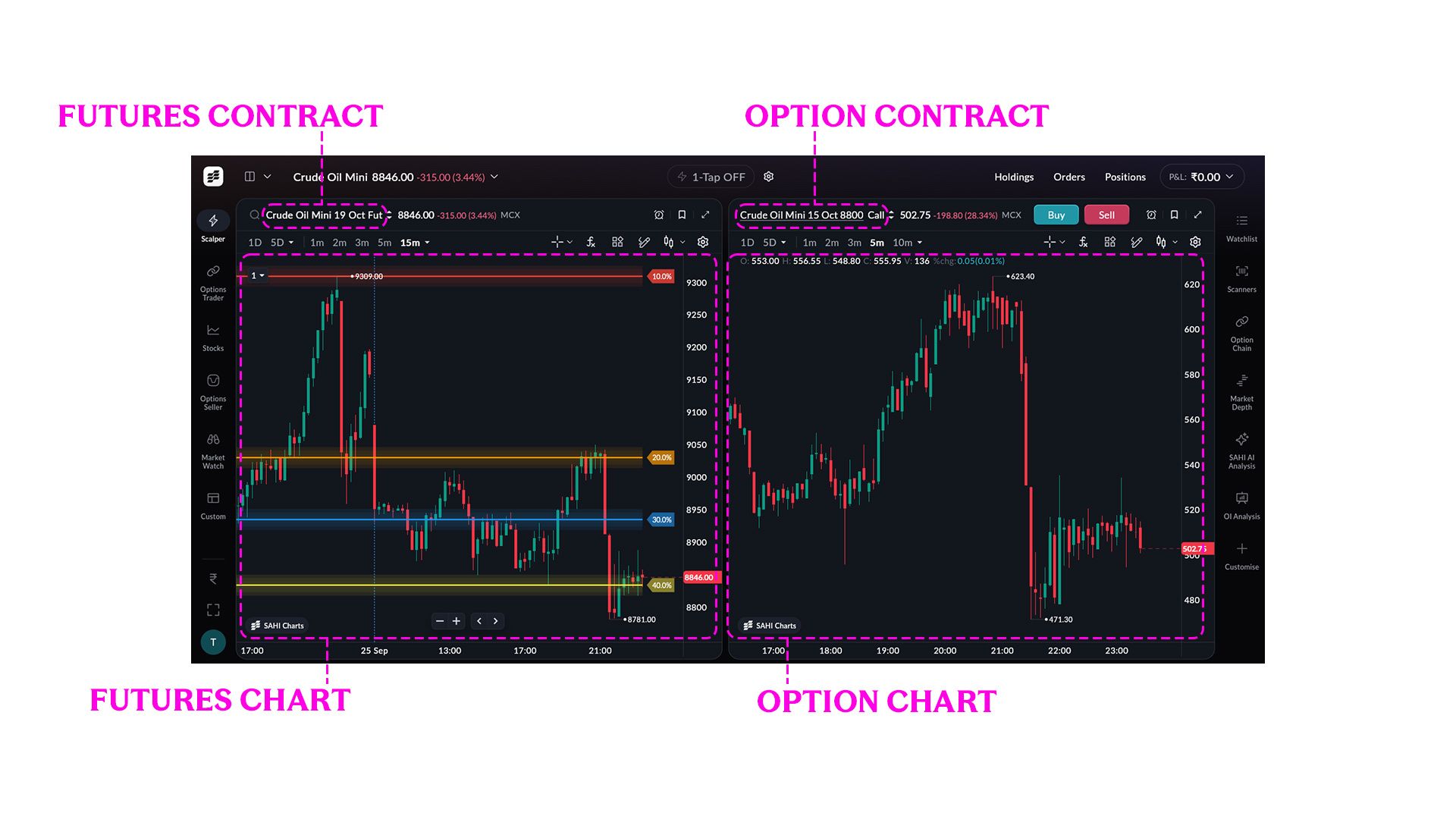
A Futures chart and an Options chart can both be linked to Crude Oil while showing different prices because they are different instruments. The Options chart is showing the price of that particular option contract.
Check Which Contract You Have Opened
Once several contracts are available, the contract name becomes important.
For a Futures contract, check the variant and expiry.
For an Options contract, also check the strike and whether it is a Call or Put.
For example, two Crude Oil Mini Futures with different expiries are separate contracts. Two Crude Oil Calls with different strikes are also separate contracts.
A quick check of the contract details before you begin analysing the chart keeps you on the instrument you intended to follow.

Adding Contracts To Your Watchlist
Once you find a contract you want to monitor regularly, add it to your watchlist.
The watchlist keeps the instruments you follow in one place, so you can return to them without repeating the search each time. You could keep the Crude Oil Futures expiry you are following alongside one or two Crude Oil Options you are analysing.
Keeping the watchlist focused also makes it easier to identify the contract you want when you return later.
On mobile, the Watchlist is available from the bottom navigation. From there, you can return to the instruments you have chosen to follow.
Finding Commodities On SAHI Desktop
The same workflow is available on SAHI's desktop trading interface.
The supplied desktop screen shows commodity instruments alongside the chart workspace, allowing you to move between the markets you are following and open their charts.
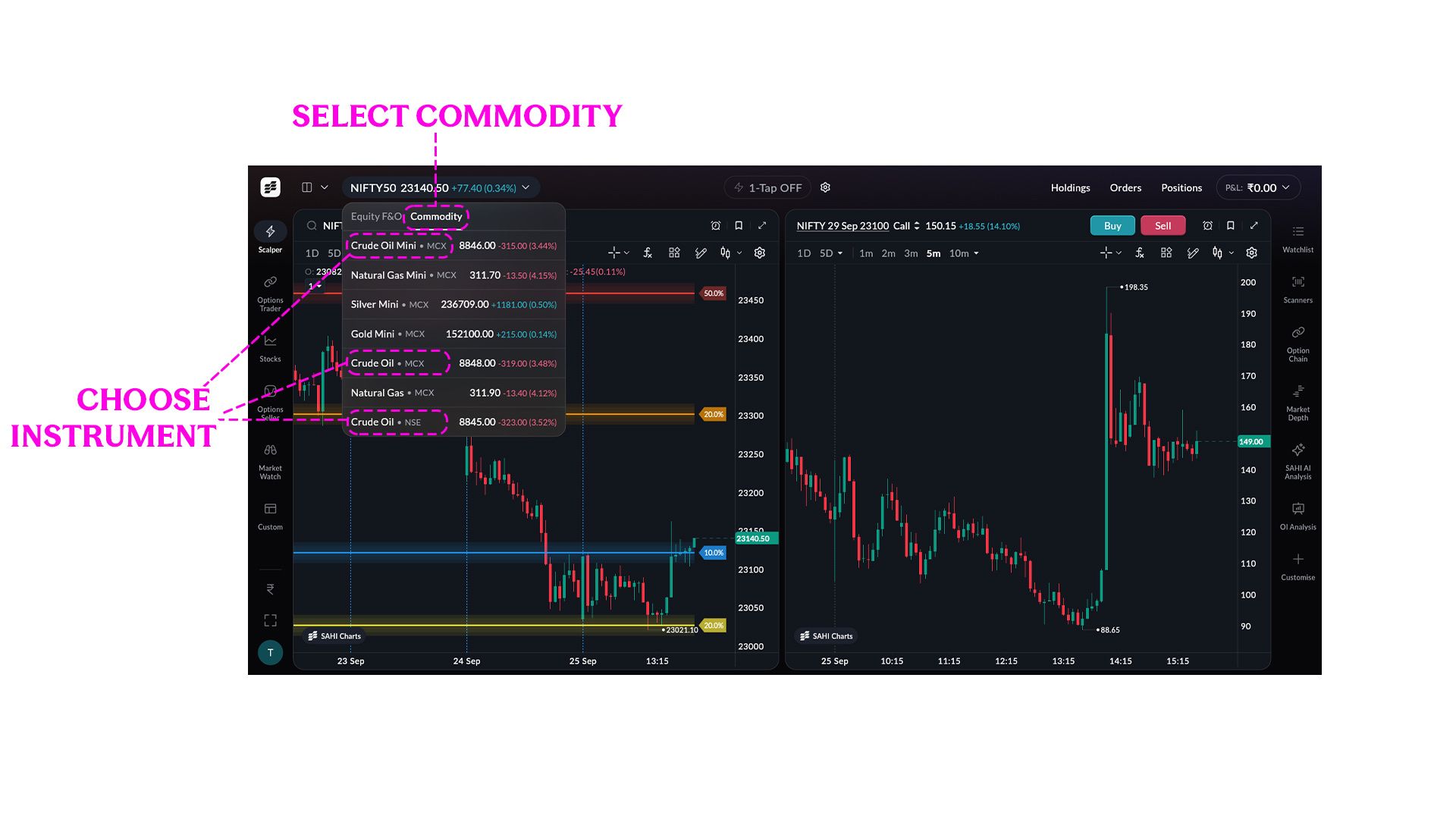
The commodity selector gives you access to instruments such as Crude Oil Mini and Crude Oil. Once you select the instrument you want, its chart opens in the trading workspace.
This becomes useful when you are following more than one contract, particularly when you want to move between the underlying Futures contract and an Option linked to the same commodity.
Before starting your analysis, check the contract name and expiry shown above the chart.
From Crude Oil To The Contract You Want
The complete Futures route is:
Crude Oil → Choose Variant → Futures → Expiry → Open Contract → Chart
For Options:
Crude Oil → Choose Variant → Option Chain → Expiry → Strike → Call / Put → Open Contract → Chart
You can then add the contracts you follow to your watchlist and return to them whenever you want to analyse the market.
The same process works for Gold, Silver, Natural Gas and other commodities available on SAHI.
Once you can move comfortably from a commodity to the exact Futures or Options contract you want, you are ready to start working with that instrument.
For the background on exchanges, contract variants and timings, see How Commodity Trading Works in India in Part 1.
Key Takeaways
- Open the Commodities section on SAHI to find the commodity markets available on the platform.
- Crude Oil can appear through different contract variants, including Crude Oil and Crude Oil Mini.
- For Futures, choose the relevant contract variant and check the expiry before opening the contract.
- For Options, use the Option Chain to select the expiry, strike and Call or Put you want to inspect.
- Add the contracts you follow to your watchlist and check the contract details before analysing the chart.
Test yourself
Five quick questions on Chapter 13: Finding Commodity Futures & Options on Sahi
Commodity knowledge check
How well do you understand commodity markets?
Answer all five questions to check what you have picked up from this chapter. Each answer comes with a short explanation.
 5 questionsUnder 3 minutes
 Instant score