

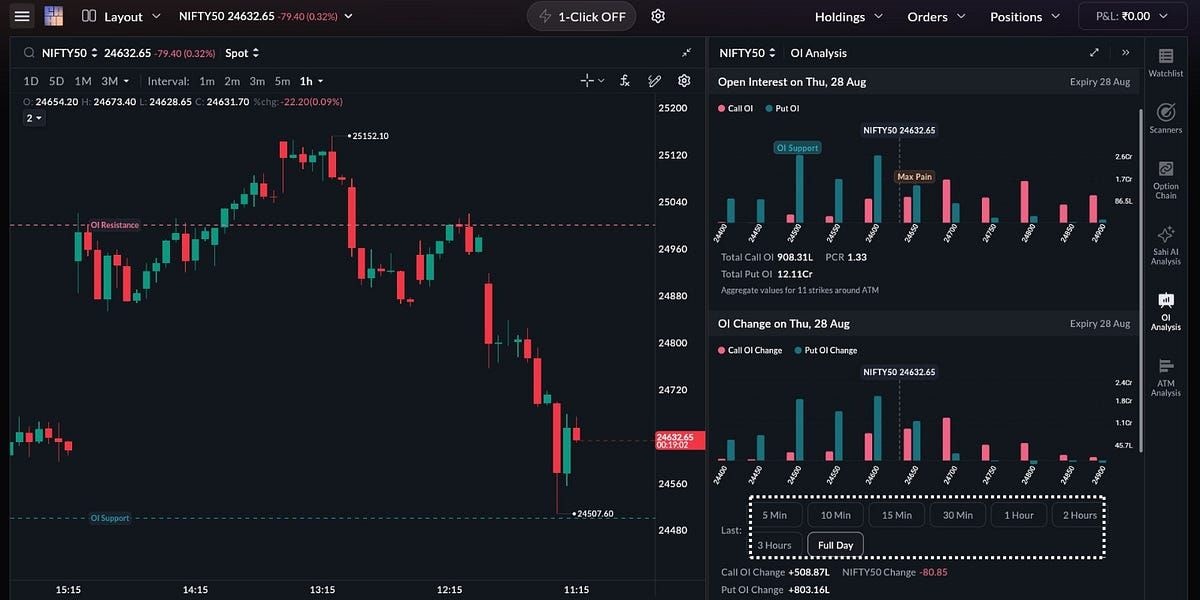
Stock Scalper: From your stock list to your order, on one screen
4 min read
Published 29 Oct 2026, 10:00 PM ISTUpdated Thu, 29 Oct, 2026, 05:30 AM IST
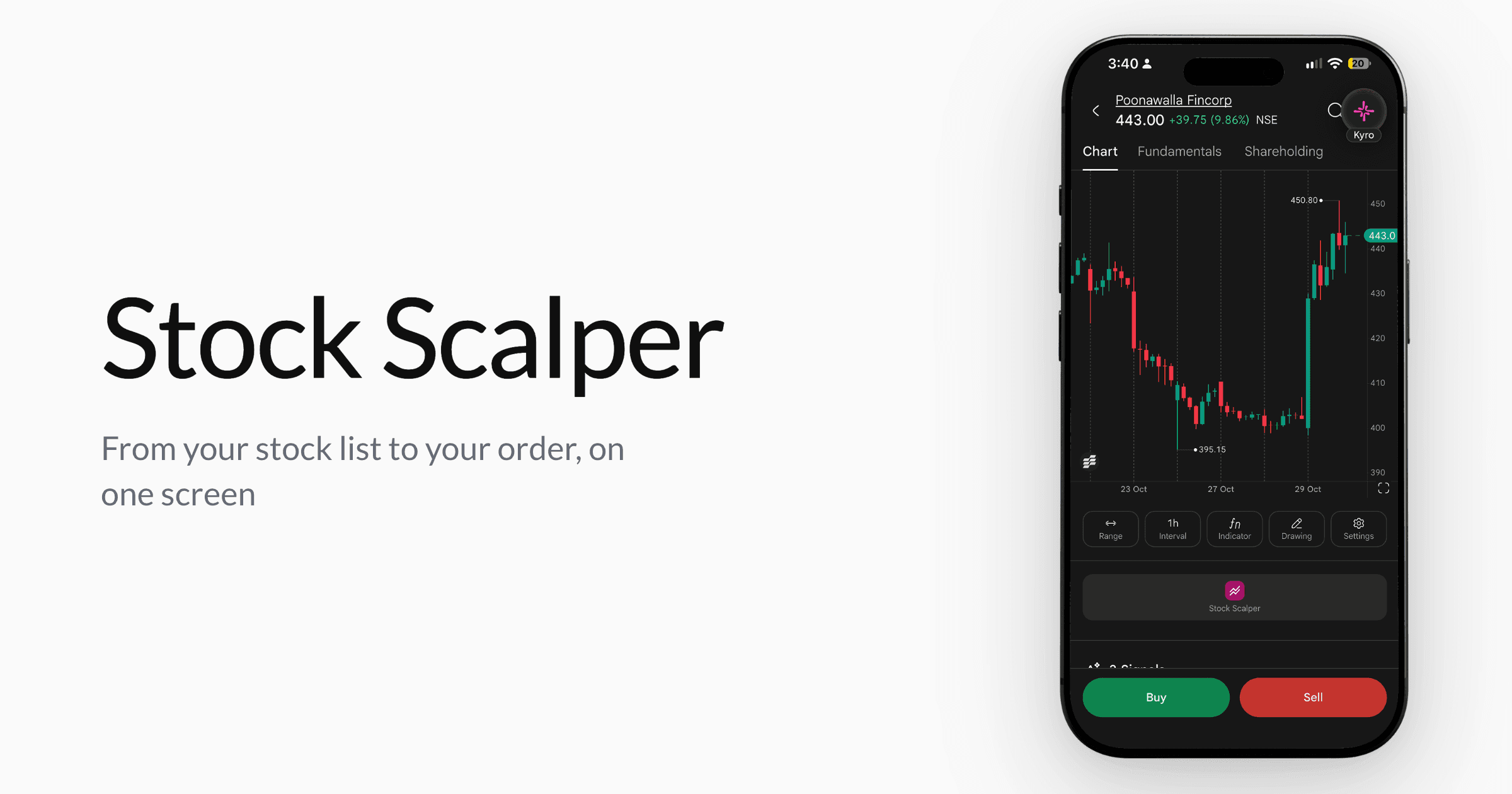
Summary
Swipe through your scanner or watchlist, read the live chart, and place or manage your order without switching screens. Plus, Intraday Scanners are now live.
Trade Smarter, Not Harder
Receive market breakouts, AI insights, and trading strategies directly in your inbox.
Stock Scalper
With Stock Scalper, you go from your stock list to your order on one screen in the SAHI app. Pick a stock from a scanner or your watchlist, read its live chart and place your order, without opening a stock page, then a chart, then an order form. It works for NSE and BSE stocks you trade intraday.
It is free to use, and standard brokerage and statutory charges apply to each order. Stock Scalper is available on the SAHI app for Android and iOS.
How to open it
- Trade tab: tap Trade, then Stock Scalper.
- Intraday Scanners: on Home, open Intraday Scanners and tap any stock.
- Stock page: open any stock, from your watchlist, Stock Scanners or search, and tap Stock Scalper below the chart.
The list you came from loads into the stock strip under the chart. The first time you open Stock Scalper, a five-step guided tour walks you through the screen, in English or Hindi.
Move through your list
The stock strip under the chart shows every stock in the list you opened from. Swipe the strip to move to the next stock. The chart reloads with your timeframe, chart type and indicators exactly as you set them.
Set your chart once. Add an indicator or change the timeframe, and it stays on every stock in your list as you swipe.
To change lists, tap the list icon next to the strip and pick from My Lists (your watchlists), Intraday Scanners or Positions. To load any stock that isn’t in your list, tap the search icon.
The chart has all the timeframes and indicators you get on SAHI charts, and you can add your own intervals. Save your setups as templates, and use any custom scripts you’ve built with Custom Indicators on SAHI web.
Two ways to place an order
The order panel at the bottom has two modes.
1-Tap Mkt. Tap Buy at Mkt or Sell at Mkt to send an intraday (MIS) market order at the quantity in the stepper. There is no confirmation screen, so the order goes to the exchange as soon as you tap. Your quantity is remembered for each stock. To make 1-Tap place limit orders instead, open the ⋮ menu, go to Order Defaults and choose Limit. You can then set the limit price to the best bid or offer, the LTP or the midpoint.
Limit/Trigger on Chart. A price line appears on the chart. Drag it to your level and tap Buy or Sell. Stock Scalper picks the order type from where your line sits against the LTP:
| You tap | Line vs LTP | Order placed |
|---|---|---|
| Buy | Below | Buy limit, to buy on a dip |
| Buy | Above | Buy trigger, to buy on a breakout |
| Sell | Above | Sell limit, to sell into strength |
| Sell | Below | Sell trigger, to sell on a breakdown |
Pending orders stay on the chart as lines. Drag a line to modify the order, or tap × to cancel it.
The margin your quantity needs shows under the Buy and Sell buttons and updates as you change quantity.
For delivery or a one-off order, tap the expand icon to open the full order form. It covers:
- Delivery (CNC) or Intraday (MIS)
- Market, Limit or Trigger orders
- Day or IOC validity
- Stop-loss and target at entry
- The required amount and charges, shown before you place
When you’re done, you come back to the same stock.
Manage your position on the chart
Your open position shows as a line at your average price, with live P&L. Intraday positions are marked I and holdings are marked H.
To add a stop-loss or target, drag it out from the position line. The sheet that opens lets you set:
- The quantity
- SL Market or SL Limit (or TP Market or TP Limit)
- The trigger price
- A trailing stop-loss, if you want one
It also shows the estimated loss or profit before you apply. If you set both a stop-loss and a target, the other is cancelled as soon as one executes. If you exit the position, both are cancelled. On a partial exit, they adjust to the remaining quantity.
To exit, tap the position line and choose Exit at Mkt, or use Exit All in Positions. If you want to hold overnight, tap Convert to Delivery in Positions before auto square-off. You’ll need funds for the full value.
Everything else, over the live chart
The bar at the top has P&L, Positions, Orders, Funds and Super Alerts. Each opens over the chart, which keeps moving behind it.
- P&L: shows your Total P&L and your Stock Scalper P&L separately, each split into realised and unrealised. You can also set P&L Protect from here.
- Funds: shows your available balance. Tap Add funds to pay by UPI and come straight back to the chart.
- Super Alerts: long-press any level on the chart, tap +, and set a price or candle alert. You’ll get it by email and app notification.
Good to know
- Mobile only: Stock Scalper is on the SAHI app only.
- Not every stock allows intraday: stocks under surveillance measures can be delivery-only. For those, use the full order form.
- Gross P&L: P&L on screen is before brokerage and taxes. Your contract note has the net figure.
- Auto square-off: open intraday positions are squared off at 3:25 PM, or 3:10 PM for stocks in CAS.
Intraday Scanners
Intraday Scanners are live scans that pick out stocks showing unusual price or volume action during market hours. They refresh every 5 minutes, so a stock can enter or drop off a scan as conditions change.
Three scanners are live:
- Price Volume Breakout lists stocks where price and volume are both moving.
- Early Mover lists stocks that are moving early in the session.
- Opening Range Breakout lists stocks breaking out of the range set in the first minutes of the session.
Each scanner has a Bullish and a Bearish view, and shows a chart for each stock so you can read the move at a glance.
You’ll find Intraday Scanners on your Stock Home. Tap View All to open the full screen, where you can filter by index, sector, market cap, price change and relative volume. Tap any stock to open it in Stock Scalper with that scanner’s list loaded in the stock strip.
Investments in securities market are subject to market risks. Read all related documents carefully before investing. Stocks shown are for illustration only and are not recommendations.
FAQs


Recent blogs

Jio Platforms IPO: Everything Investors Need to Know Before Investing
/Posted 2 weeks ago
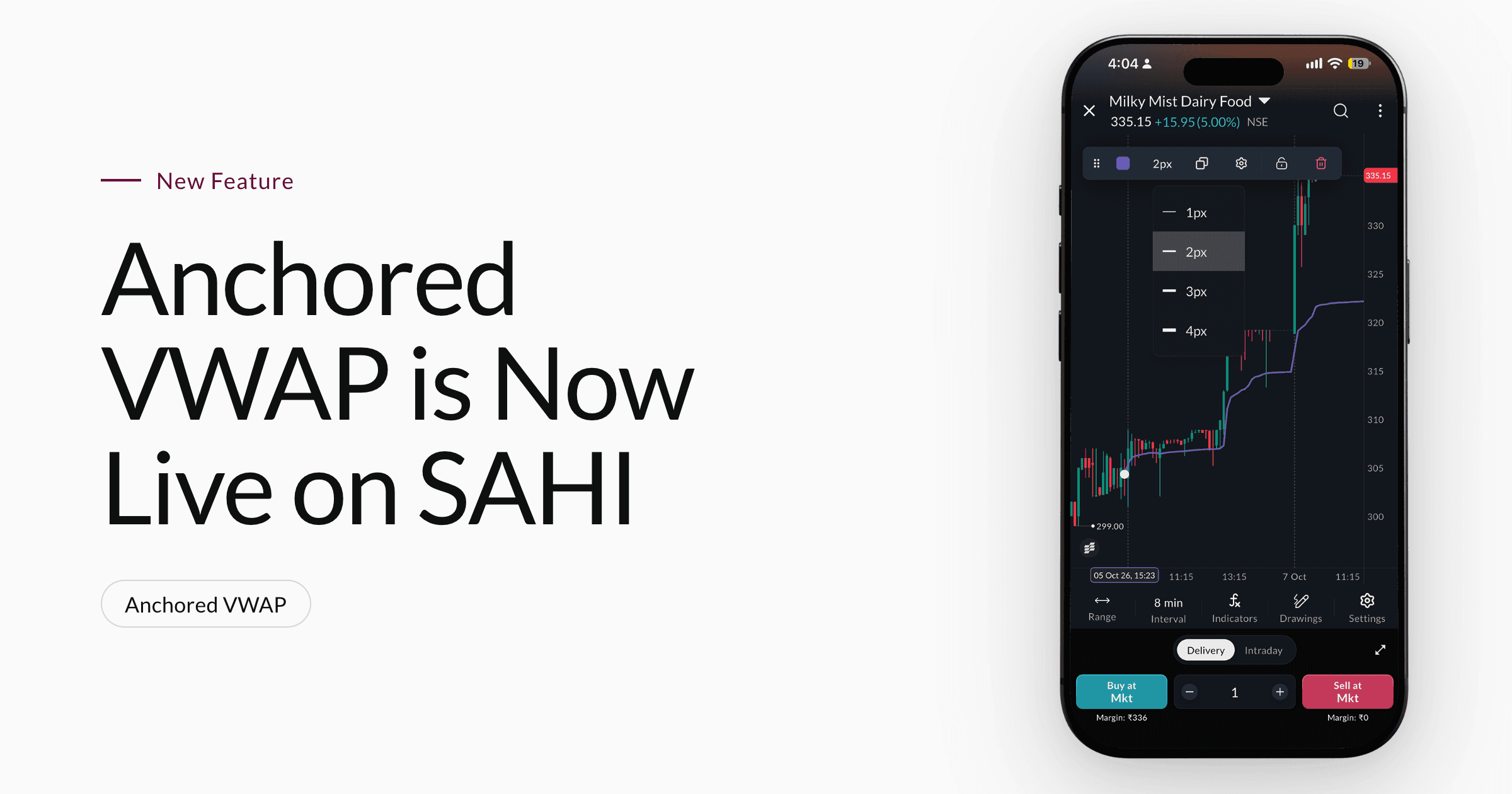
Anchored VWAP is Now Live on SAHI Charts
/Posted 0 month ago
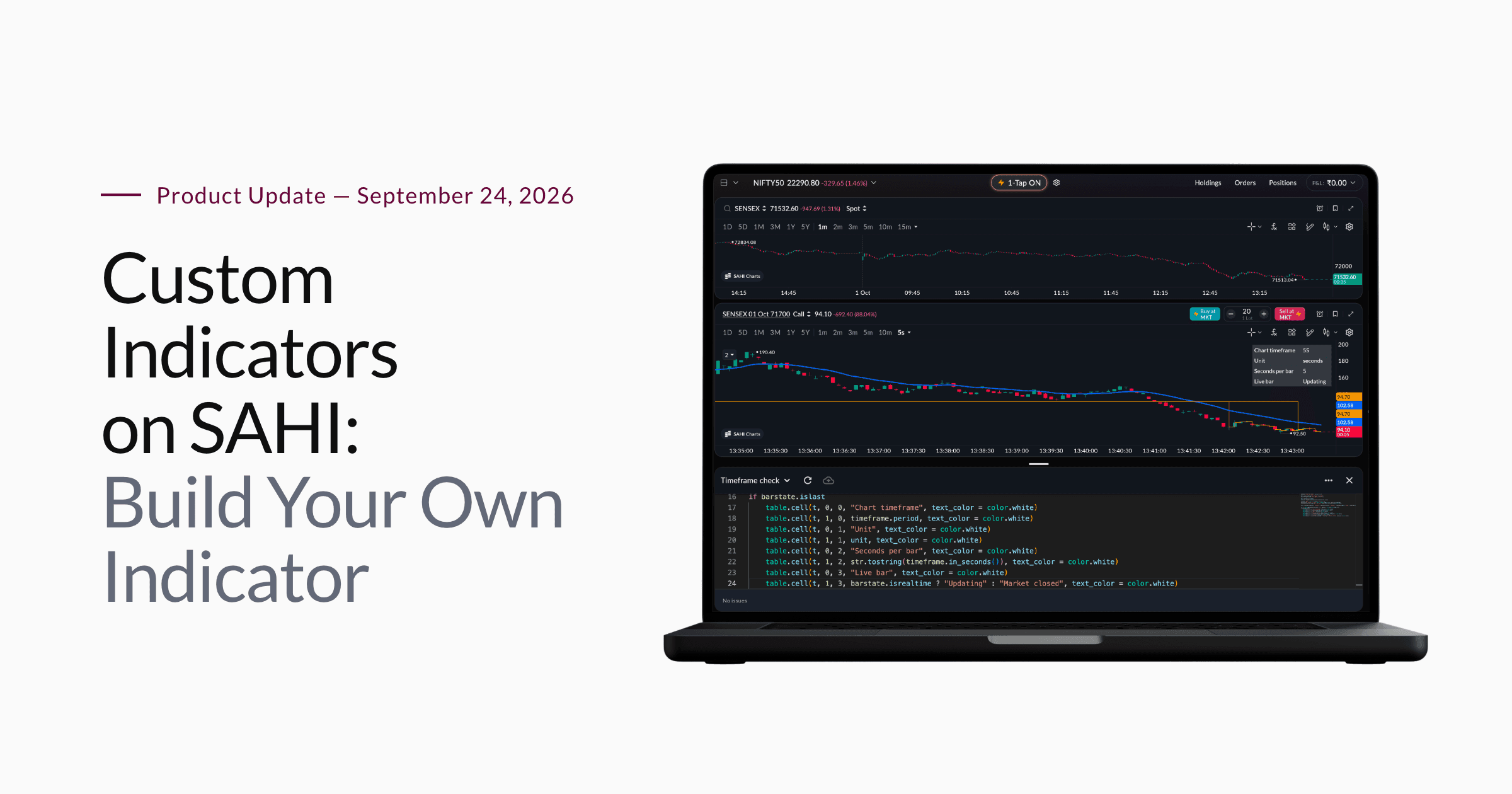
Custom Indicators on SAHI: Build Your Own Indicator, Free
/Posted 1 month ago
Add Sahi as a Preferred Source on Google
Click the link, confirm the box next to sahi.com is checked — ignore any other results.